Creating an @Home Email AccountOnce the @Home software has been installed, the next step is to create a "username@home.com" email account. To begin, open the @Home browser. Cick Member Services at the bottom of the Shaw@Home Browser 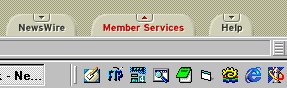
Choose Email Services 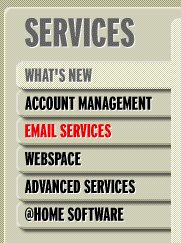
Select Add/Delete Account 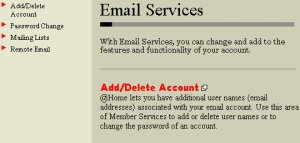
Enter your 10 digit login in User name and the numeric password 
Click Submit From User Manager, select Add User Account 
In the following screens, enter the details of your new email account, including username 
Enter and verify your Password 
Click Submit If your chosen username is in use, you're prompted to choose another 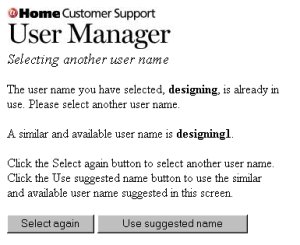
Choose either the suggested username, or enter a different one. You will receive confirmation that the username that you selected is available and that the email account has been created. 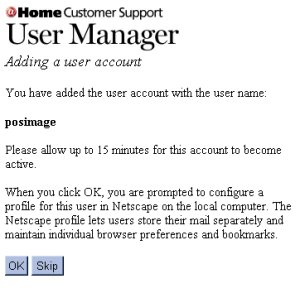
If you use Netscape Communicator, the next dialogue box will appear asking if you would like Communicator configured with the new email account. If you choose "Yes", a new user profile will be created. To setup email forwarding to redirect your email to your new username@home.com email account, click here.
|