Configuration of Outlook ExpressFor more information on Outlook Express, visit Microsoft's Outlook Express Support. To create email accounts, open Outlook Express Select Tools from the menu, choose Accounts 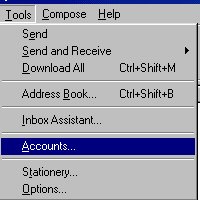
Make sure the Mail tab is selected in the Internet Accounts dialogue box 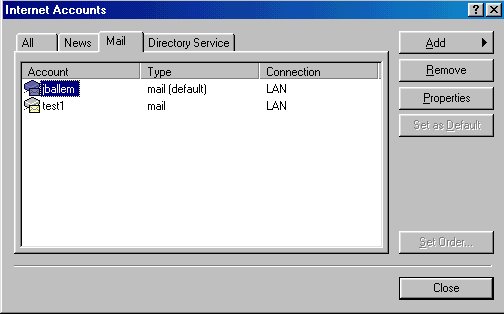
Click Add, Mail to create a new account 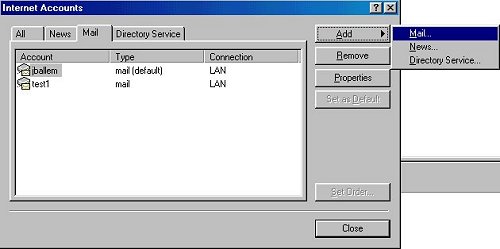
Type your name as you want it to appear in your message's From: field 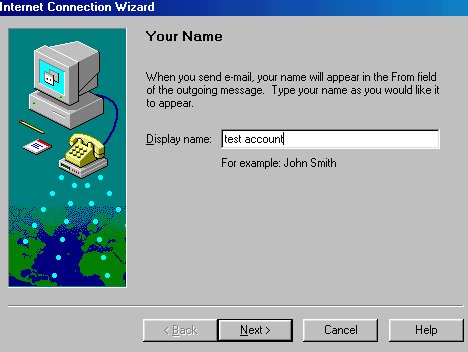
Type in your @Home email address (e.g. mymail@home.com ) 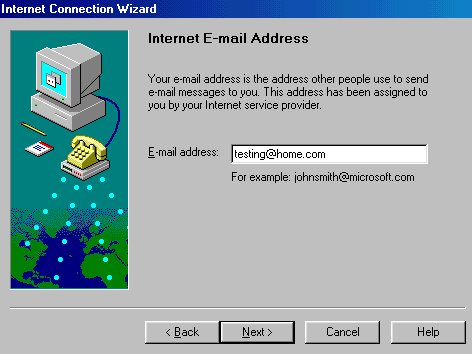
Set your incoming mail server type to POP3 Type your incoming and outgoing mail server addresses (mail ) 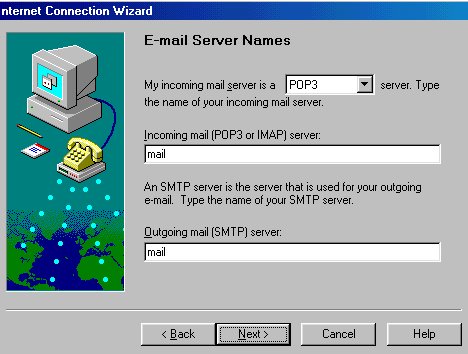
Type your email account name and password For added security, don't enter a password if you want Outlook Express to require it for each logon 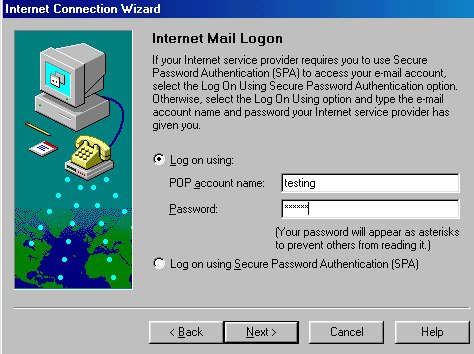
Type a friendly name for your account This can be either your name or something like "My Personal Email" 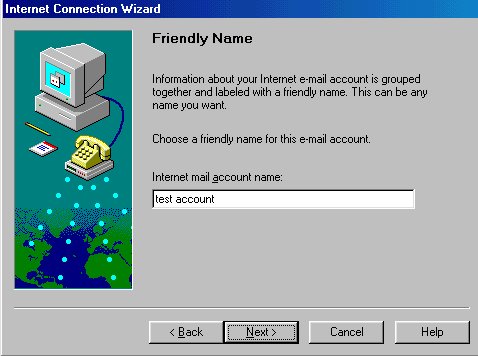
Under Connection Type, make sure that you have LAN selected 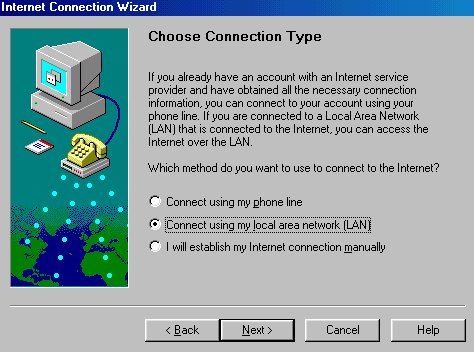
The Congratulations dialogue box confirms that you're done. Click "Finish" 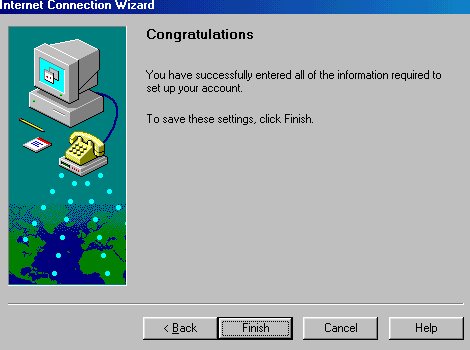
Your new email account appears in the Internet Accounts dialogue box 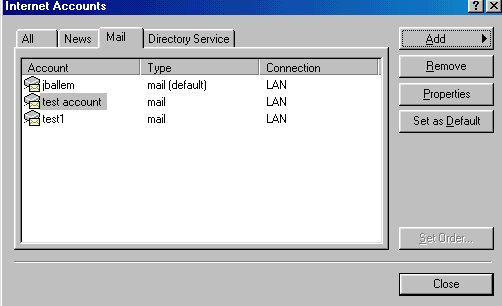
Click Close to exit
|